Reckon Hosted
What Versions of Reckon do you convert?

What is Converted?
- Closed Invoices & Bills for the Transactional Period Converted
What isn't Converted?
- Multi-currency. AUD must be the only currency.
- Inventory Quantities - this can be setup post conversion for tracking, see here
- Pay runs - Opening balances are added. - How Payroll Converts
- Tracked Inventory needs to be setup post conversion - More information
- Xero does not allow general journals and payments unallocated to invoices and bills to customers and suppliers. Therefore we assign these to a non system Accounts Receivable and Payable account.
Watchouts in Reckon for Conversions
- Manual journals to control accounts - More information on how we handle this
- Multiple Accounts Receivable / Accounts Payable accounts - As Xero only allows one we need to merge them.
- Invoices or bills where the chart of account used is a Bank - More information
- Transactions with greater than 1000 lines - more information
- Turn on Chart of Accounts Numbering or we will add numbering during the conversion - more information
- In some instances in Reckon a transaction may be linked to a job report however when looking at the transaction in Reckon there is no job listed. In these instances you may experience a variance in the Job profit report.
Getting Ready to Convert
Preparing My Reckon for Conversion
Reckon Hosted
How to Create a Back-Up
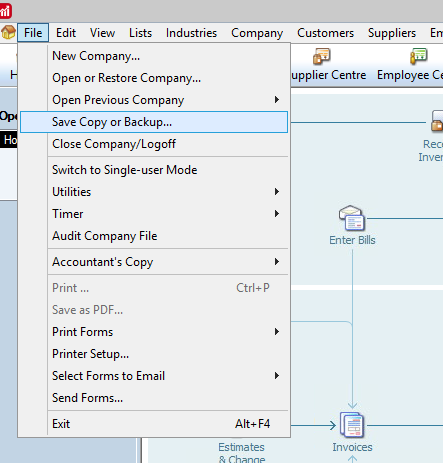
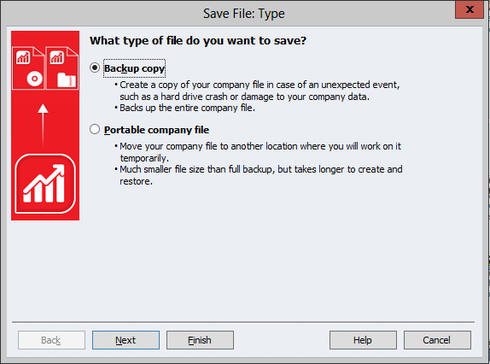
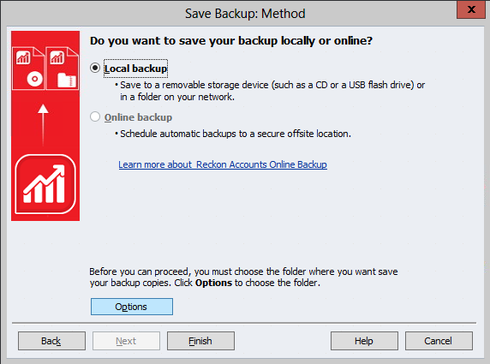
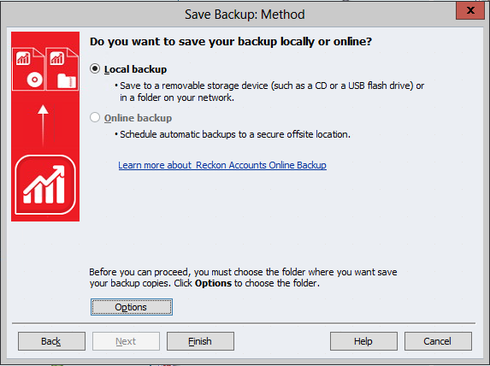
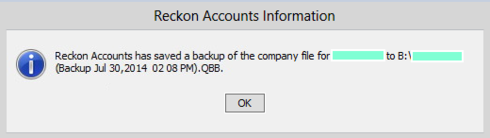
Follow these steps to save your backup to your computer.
- Click on the download icon located in the top right-hand corner of your screen
or
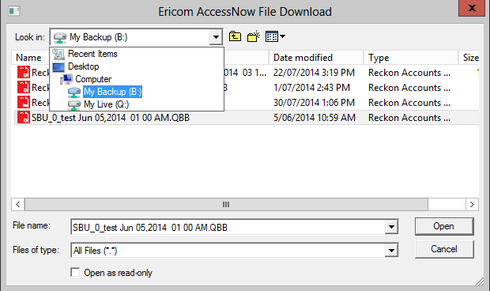
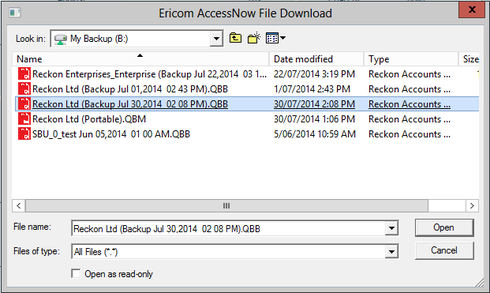
- Click on the “Look in:” drop-down menu and select “My Backup (B:) “ where your hosted backup sets are stored by default
- Select your Backup File or Portable Company file you want to make a local copy of
- The Reckon Accounts Hosted download function will automatically download your file to your web browsers default download folder location.
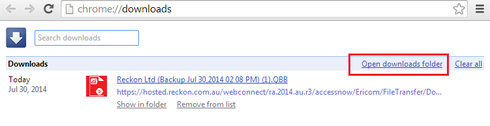
From here, you can load through our website for conversion.
How to clean up my Reckon Hosted File
File > Utilities > Clean up company data. Clean up the file by purging transactions prior to your chosen date.
Remove all transactions prior to your chosen date.
Uncheck "Remove uncleared (unreconciled) bank and credit card transactions."
Remove the 'Done' To Do Notes. You may also wish to check the box for the unused accounts/customer or suppliers.
Select Begin Cleanup
Put the backup into a subfolder. Select OK
At this stage also go through the complete verification.
Click Save.
If you receive this error, some additional account fixing may be required. See the steps below.
It is best to save as a .QBW or QBB. You can then reopen the file to check that all the data you want to convert is still in it prior to starting a conversion.
Reckon then asks where to save the working copy. Save in a directory and call it something unique so that it is clear that this is not your working file. Once you have verified the data, this is the file to upload. Be sure to remove any passwords.
Errors - How to Fix Various
Common Errors and How to Handle Them
- Clean-up date set too early. See Example 1
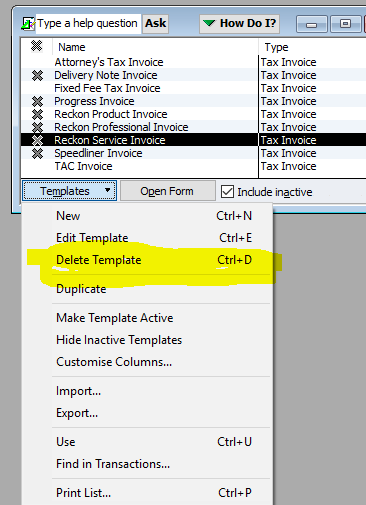
- Error Templates - See Example 2
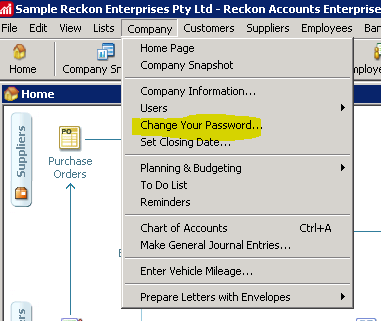
- Changing Admin Password. - See Example 3
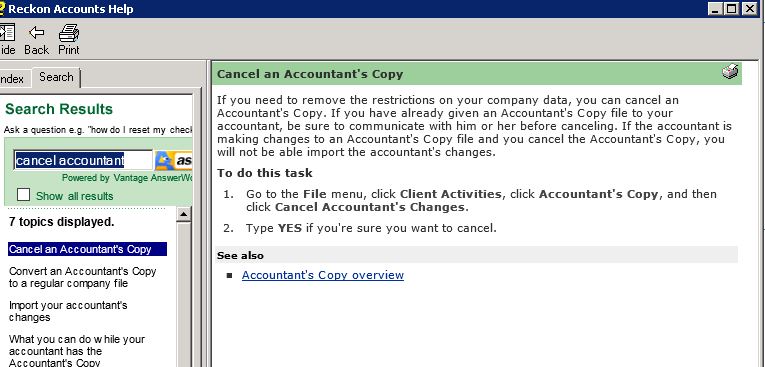
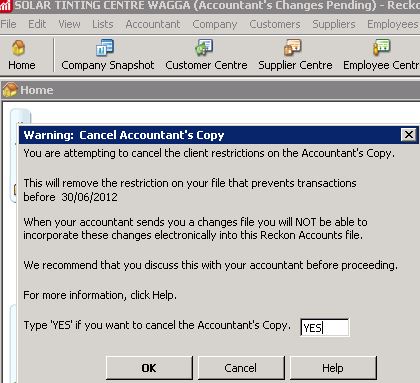
- The accountant’s Copy may need to be cancelled for purging. - See Example 4
- Clean-Up Date
Set the date for clean up to be the end of the financial year that you do not need data for to retain only the relevant data. Open invoices, etc., will still come through.
Clean-up date may be set before 30/06/2014. Edit > Preferences > Accounting > Company > Set closing Date > Ok - Errors in Templates
In the rebuild, you may get errors in the Templates file. You need to find those errors and then delete the templates.
Might need to do a rebuild of the file, which recreates indices and relationships. This is an example of a failure - duplicate elements.
The log file showed there were 2 invoices called "custom invoices"
Following this up discovered that there were 2 templates called “custom Invoice” (Will need to track these errors to see what the common ones are).
Deleting 1 solves this problem - Change Password to Blank
Company, Change Your Password. Please supply the file with a blank password. - Change from Accountants Copy to Business
Sometimes the file will have had the accountant’s Copy set. You need to go and cancel that process to enable cleanup.
File > Accountant's Copy > Client > Cancel
Requires Confirmation
Reckon Accountants Version - How to Downgrade a File
If you have a Reckon Accountant file, we need the file to be saved from a business version of Reckon (Pro / Premier / Enterprise). To do this, please follow these steps:
- Open the Reckon File in the Accountant version.
- From the file menu, choose toggle to another edition (e.g. Premier General Business).
- Save a backup copy of the file.
- Whilst still toggled, restore the back-up copy, this is now ready to upload to us.
Post Conversion Recommended Next Steps
- Reviewing you customise Action Checklist - this will be attached to the email advising completion, or you can return to your status page to download a copy.
- Comparing your data for peace of mind - more information
- Do you have an Accounts Receivable or Payable Originals Account? - get this tidied up - more information
- Updating my Chart of Accounts in Xero - more information
- Setting up your Bank Feeds - more information
- More helpful information on Using Xero